How to Optimize a Gaming PC for Cloud Gaming
Oct 29, 2026 · Sourajit Saha
Optimize a gaming PC for cloud gaming by improving the connection, keeping the streaming client healthy and checking the local video and input path. A faster graphics card will not automatically fix a stream that is delayed or repeatedly interrupted, because the remote system renders the game.
I would establish a repeatable baseline before changing settings: the same service, game, client, connection and display. Then change one thing at a time. That approach helps you distinguish a useful adjustment from an apparent improvement caused by a different game scene or a quieter network.
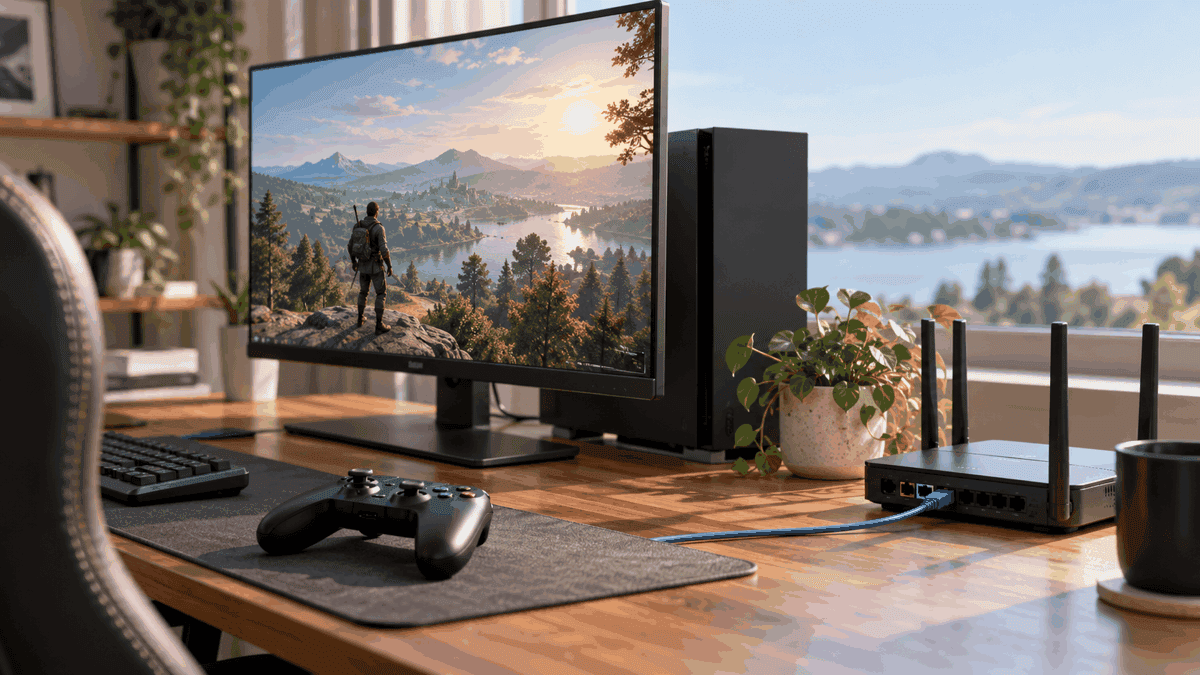
Keep the service, title and client the same for comparisons.
Repeat the result before buying an upgrade.
Understand the complete input and video loop
Your controller or keyboard sends an action through the client and network. The remote machine processes the game, encodes the result and sends video back. Your PC decodes that video and presents it on the display. Every stage can affect what the session feels like.
This is why a desktop that runs local games well can still deliver a disappointing cloud session. Its local rendering power does not remove distance to the provider, unstable Wi-Fi or a client decoding problem. Conversely, a less powerful computer can be a perfectly usable client when the supported requirements are met.
Treat local-game FPS, stream frame rate and display refresh rate as different measurements. Increasing one does not guarantee an improvement in the others. Start by identifying whether your complaint is picture quality, repeated stutters, slow control response or a session that will not launch.
Make the network comparison first
Compare your normal connection with Ethernet if a suitable connection is available. Keep the game and client unchanged. If wired play behaves better, that is a practical reason to investigate wireless conditions before changing Windows or buying a GPU.
For Wi-Fi, compare your usual seat with a location closer to the router. Consider competing traffic and physical obstructions. A stronger signal is useful evidence, but it does not prove that every part of the wider internet route is healthy.
NVIDIA’s cloud streaming requirements recommend wired Ethernet or 5 GHz Wi-Fi and distinguish requirements by streaming mode. Those are service-specific requirements, not numbers to apply blindly to Xbox or another provider. Use the actual service’s current requirements for your target mode.
Reduce contention before buying faster broadband
Pause large game downloads, cloud backups and uploads you control, then repeat the baseline. Other devices in the home can compete for the same connection, so a PC showing little network use is not the whole picture.
If play improves only when other traffic stops, investigate scheduling or the router’s documented traffic-management features. Do not assume that the largest advertised download plan is the only solution. Congestion inside the home and limits elsewhere on the route are different problems.
Record whether the issue appears at a particular time of day. A consistent evening pattern gives you a useful question for the internet provider. One speed test at a quiet time cannot establish that a later gaming session will have identical latency and consistency.
Use a supported, current client as the baseline
Update the browser or native application through its normal source. Test the provider’s supported client before relying on an extension-heavy browser, wrapper or experimental streaming tweak. A clean baseline makes later comparisons interpretable.
If the same service supports an app and browser on your system, compare them with the same account and game. The result can reveal a client-specific problem without implying that one is universally faster for every PC.
Review extensions if one browser alone misbehaves. Temporarily test only the relevant extension change and restore it if nothing improves. Avoid globally disabling security protections or applying a large collection of browser flags whose effects you cannot explain.
Check decoding and background load
A cloud client still needs to decode and display compressed video. While the problem occurs, inspect ordinary system resource usage for unexpectedly heavy CPU, GPU or memory activity. A recording tool, another video stream or a background task can compete for resources even though the game itself runs elsewhere.
Keep display drivers current through the GPU vendor or system manufacturer’s normal update route. If the problem began immediately after an update, record that timing before installing more unrelated software. A reproducible regression is more useful than an assumption that every newer driver must fix it.
Hardware acceleration can affect a browser’s video path, but it is not a universal magic switch. Use the normal browser setting and relaunch when required. If you compare enabled and disabled states for a specific problem, keep a note of the original setting and retain the state that actually behaves correctly on your system.
Match the stream to the real display and connection
Choose an available streaming mode that your service plan, client, display and connection support. A high-resolution monitor does not establish that the account can receive a matching cloud stream. Check which setting describes the stream and which merely describes the desktop output.
When the picture breaks up or stalls, compare a lower supported stream setting with the baseline. If it becomes stable, that gives you a direction for further testing. It is not a measured guarantee that one resolution is right for every household.
Avoid stacking unnecessary scaling and display processing while diagnosing a problem. Confirm the monitor is using the expected resolution and refresh rate, then test its ordinary low-latency gaming mode if available. Document changes so you can restore your preferred desktop appearance afterward.
Simplify the controller or mouse path
For unexplained input delay or disconnections, compare a wired controller with the usual wireless connection where supported. Use a known-good cable that carries data. A cable that charges a controller does not necessarily establish a working wired input connection.
Check whether the device behaves correctly outside the cloud session. If it fails in a normal local input test, investigate that before blaming the remote service. If it works locally but fails only in one client, focus on the client’s input support and permissions.
Mouse support is service- and game-dependent. Do not assume that a PC browser guarantees mouse-and-keyboard controls in every remotely streamed console title. Also distinguish an unsupported input method from a supported method that feels slow; those require different fixes.
Avoid optimization changes without a mechanism
Registry packs, disabled Windows services and aggressive power tweaks can create problems unrelated to streaming. The fact that a setting sounds gaming-oriented is not evidence that it improves the network or decoder path on your machine.
Use the normal power setting appropriate to the device and make sure a laptop has adequate power and ventilation. Do not remove thermal protections or overclock the GPU to address an unproven streaming bottleneck. Investigate the stage that actually shows symptoms.
DNS and VPN changes are similarly specific. DNS is part of locating a service, while a VPN alters the route and may affect eligibility checks. Neither should be presented as a guaranteed latency improvement. Preserve the original configuration and follow the service’s location rules.
Keep a short comparison log and a stopping rule
A useful log can be a few lines: game, time, client, wired or wireless, stream mode and observed symptom. Add the single setting you changed and whether the result repeated. You do not need invented benchmark numbers to make the comparison useful.
If a change appears to help, repeat it under comparable conditions before buying hardware on that basis. If nothing changes, restore the old setting and move to another plausible stage. This prevents a pile of unrelated tweaks from becoming the new unknown problem.
My final priority order is connection consistency, supported client, decoding health, display and input. Spend money only when a repeatable comparison points to a component you can actually improve. A cloud PC is optimized when it delivers a stable, responsive session for your chosen service, not when it has the longest list of gaming tweaks.
Frequently asked questions
Will a new GPU fix cloud gaming lag?
Only if the local video or display path is the limiting factor. It will not remove a network or provider problem, so diagnose before buying.
Should I disable hardware acceleration?
Do not disable it automatically. Use the supported normal setting as a baseline and compare states only when investigating a reproducible client issue.
Is Ethernet mandatory?
Not always. It is a useful comparison and often a practical way to remove wireless variables, but a suitable stable Wi-Fi connection can work.
Does more download speed always mean lower delay?
No. Available bandwidth, latency and consistency describe different properties. A faster plan does not automatically solve every stage of the stream.
Continue with the next check
If the game never reaches gameplay, start with the cloud launch checks. Connection tuning is a different task from confirming that your account can start the selected title.
Information checked October 29, 2026. Availability, supported devices and access terms can change.